Docker — Ultimate Beginner's Guide (Step by Step)
DOCKER — What, Why, How?
Now many of you might have previously tried to learn docker through videos or other articles but it looks like you still haven’t understood properly that what docker is and for some, it might be the first time but don’t worry after reading this article I can pretty much guarantee that you won’t need to go back to basics of docker again. So let’s get started.
What is Docker???
Simple Defn:- Docker is a software which helps you run Virtual Machine’s just like any other software e.g:- VMware but the difference here is Docker VM’s are called container (a simple box) which is totally isolated (separate) from the Host OS.
But the next question arises why they are called containers and why to use docker if we already use softwares like Virtual Box, VMware, etc.
Why to use Docker???
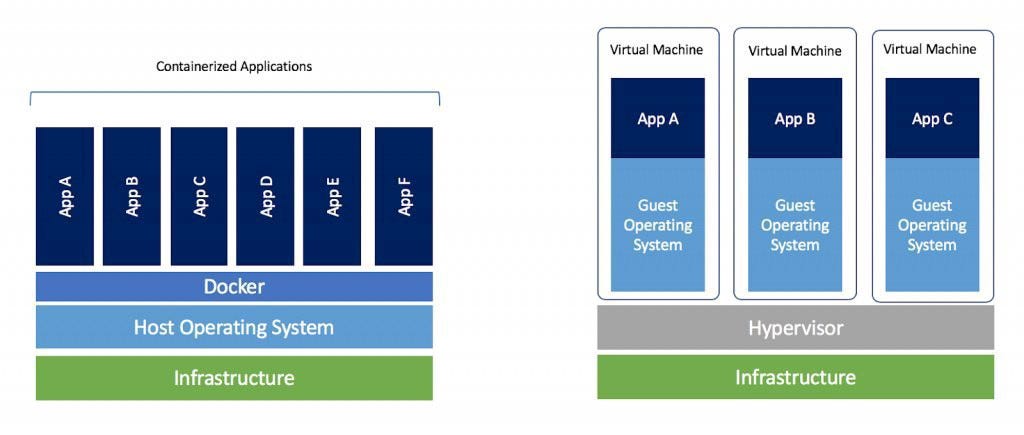
Now many of you might have seen the above Image before if not, this image is vastly used in explaining what Docker is and how Docker works, on the left side of the image you can see how docker works and runs on your computer and on the right side you can see how a VMware and other similar softwares runs on your computer.
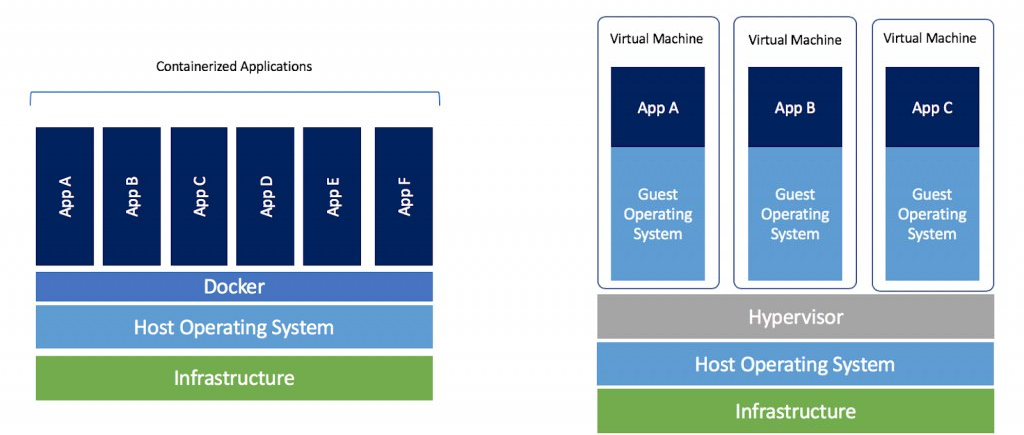
The above is a more detailed Image try to spot the difference between the two images if you can. So let’s try to understand what the Image means.
Firstly, you can see there are some common terms like Infrastructure, Host Operating System, Apps, and some uncommon terms like Docker and Hypervisor.
Explanation of common terms.
Infrastructure:- This is basically your server or computer components like RAM, Processor, Motherboard, etc.
I.e:- your physical things.
Host OS:- This is just an Operating system on your computer like Windows, Linux, macOS, etc.
Apps:- These are your VM’s or container’s that you install on your Computer through Virtual Box or Docker. (We will talk in more detail further)
So until now, u might have got a slight understanding of what the image looks like.
Now the explanation of uncommon terms — HyperVisor & Docker
Hypervisor:- There are two types of hypervisors:
- The Hardware Hypervisor directly sits on your infrastructure without the need for a Host OS.
- The Software Hypervisor one is just your software (Virtual Box, VMware, etc.) which sits between your Host OS and Virtual OS that helps you run your other Virtual Operating System (Linux, Ubuntu, Windows, etc.)
Docker:- [read the above docker definition]
So now Why to use Docker over VMware & Why are docker VM’s called containers?
As you can see in the above image there is still one more thing left we haven’t discussed about and that is the Hypervisor (right side) have a guest OS and on above our app is sitting, but on the other side of the image Docker (left side) doesn’t have a guest OS but has an app. Now, what does that mean?
First let’s clear out that what does the “App” means in the image, in easy words the “App” is the file system of the particular OS we want to install. Every OS (Windows, Linux, Mac OS) have a different type of organized file system. So “App” here simply means the file system of the particular OS.
Docker containers are very light, fast, portable, and very efficient than a VM launched by VMware or any other similar softwares because Docker doesn’t create a full OS installation, unlike VMware it creates only partial OS.
Now, what does a full OS means?
When you build yourself a new hardware/computer for the first time the first thing you do after building your hardware is installing a new OS on it (e.g:- windows) after that you install drivers, softwares, etc. This is called a full OS where you install softwares, drivers, kernel, file system, etc.
This is how a VM installation also works it installs a full OS every time you create a new VM.
And for those who don’t know what kernel is? It's part of the Operating System, basically a program that allocates resources to your running softwares.
Now on the other hand side, Docker installs only partial OS but works similar to a full OS as Docker is very efficient in using host OS resources, and because of that Docker doesn’t need a full OS installation.
Now, whenever you create a new Docker container the Docker only creates apps (file system) a partial OS, but we still need more things to run a full OS like kernel, drivers, etc. So docker tries to get those things from its host OS to convert a partial OS to a full OS so now every time you boot-up a container the kernel, drivers, and most of the resources are already ready and there for you, and because of that docker container boots-up in seconds, and not only that but even creating a container only take few seconds compare to creating a VM as docker containers are very light and they only need to create apps (file system) and because of that they need very fewer resources to run and are very fast too because of this only app functionality they are portable too.
And now let’s see how to create containers in seconds and how they are portable… and everything else?
How to use Docker???
The first thing you need to do is install Docker on your machine: for Mac and Windows, you can visit here & for Linux visit here and then select your OS type and follow the instructions, if you find it hard to follow instructions for Linux installation you can have a look at this video.
After the installation, let’s create our first Docker container “Hello-World” but before continuing I would like to tell you one more thing that moving ahead we are going to use Docker CLI (command-line interface) because it is much easier compared to docker GUI (graphical user interface) and ahead we are going to learn how to use docker via CLI you can use GUI too but I don’t prefer that way because in the long term CLI will be beneficial and less time consuming for you. So let’s start.
Here’s our first command to run the “Hello-World” container.
docker run hello-world
The response should look like the below image and if it shows any error try to run it with admin/root privilege.
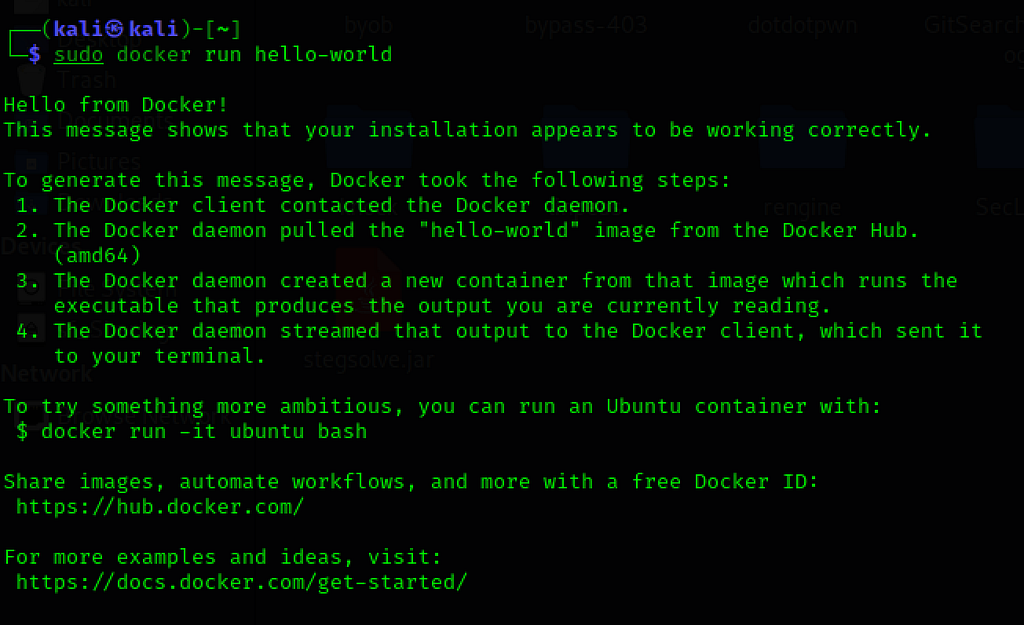
If you get the above response then it means that docker is successfully installed and it is working properly and you might notice that how fast a container got created, but if you get any error’s try to comment down below and I will try to help.
OK, Now let’s create our first OS container: Ubuntu
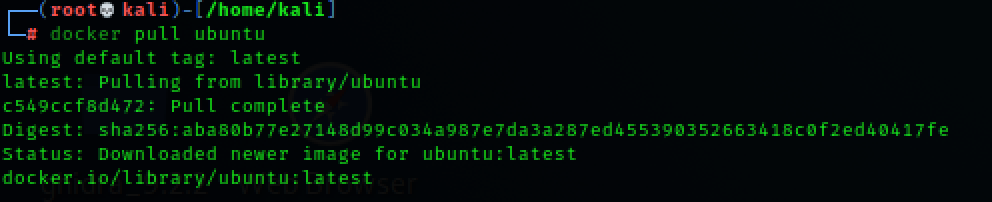
For creating a ubuntu container firstly we need an ubuntu OS image just like when we create a new VM but here you don’t need to mess around and look for a lot of things to download the image, here too u just need one simple command to download the image.
docker pull ubuntu
That’s it, your ubuntu image is downloaded and now we can create multiple ubuntu containers in seconds.
docker run -d -t --name test1 ubuntu

With the above command, you will be able to start your first ubuntu container, before that let’s understand what does the command do, “run” here means start a container, “-d” means start the container in a background mode you can skip this but it’s a good practice to use, “-t” simply means keep the container alive if you don’t use this option your container will immediately stop after it has been created but you can again restart it later if you want, “--name” means naming your container, and at last “ubuntu” is the image we want to use here, but you can select any image from here or you can even create your own image file and use it.
Now if you remember we used the “-d” option for creating our container, and because of that our container is running in background mode now we need to connect to our container to use it.
So here’s the command to connect to our container.
docker exec -it test1 bash

Let’s try to understand this too, “exec” means execute a terminal, “-it” means STDIN (Standard Input) - STDOUT (Standard Output) of the terminal, “test1” this is the name of the container, “bash” means execute a bash terminal.
In the above image you can see that after connecting to the container I even ran some Linux commands i.e:- id, whoami, ls, you can even connect with your Ubuntu machine via GUI but we are not gonna learn this right now as it will make article bigger and boring. :)
Now let’s learn some more basic commands of docker:
docker ps -a
It shows all the docker containers whether running or stopped.
docker stop container_name
It stops the running container.
docker start container_name
It starts the stopped container.
docker rm container_name
It removes the container but remember you cannot remove a running container you need to stop that container before removing it.
docker search image_name
It searches the docker image hub.
docker images
List all of your downloaded images from the docker image hub.
docker rmi image_name
It removes docker installed images.
How to move containers from one host to another host
docker export containername -o container_output_file_name.tar
The above command creates a .tar file for your container, now move that tar file to another host.
docker import container_output_file_name.tar image_name
e.g:- docker import container.tar image1
The above command creates an image of your container and then you can create multiple containers out of that image using the below command.
docker run -d -t --name test2 image_name bash
You might be familiar with this command there is only one change, we have added a terminal type at last to it and that’s it.
So it’s that simple to move a container.
Disadvantages of Docker
Now we know that none of the technologies are perfect every tech has its pros and cons and docker to have some, we already have talked a lot about the pros of docker but now let’s discuss one of the most popular cons of docker and that is cross-platform compatibility.
It means that you cannot run windows container on Linux host OS but you can do vice-versa like running Linux on Windows host OS. So if you are running Docker on Windows then you are in luck but if you are running Linux host OS then you cannot run Windows container.
Now you might be thinking that why we cannot run windows containers on Linux the simple answer is that it’s basically because of the kernel the both OS use a little different kernel and because of that it happens with Linux. I’m not going deep into this as it will be more & more confusing for beginners.
Conclusion
Everything in this world has its pros and cons and so do our new tech goodie Docker. Now it’s you who need to decide that what is your main purpose of using Vhost why you need a second OS and which suits your need Docker or VMware.
So Congratulations on reaching at the end of this article, if you have read this far, then you should be proud of yourself as this article is very big and it takes time and patience to read through all of this and it also means that you have a burning desire to become something or to do something, so once again congratulations and thanks for sticking till the end and I hope all of your doubts related to docker are cleared now if there are still any doubts left, please comment down below and I will try to solve it. And at last, if you enjoyed it and found this article useful, please leave a like.
Thanks